



Getting Started on Your Route
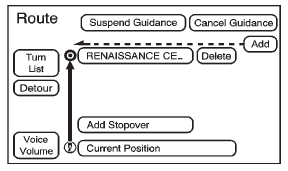
Once a destination has been entered, there are several functions that can be performed. Press DEST to access the Route screen.
Turn List
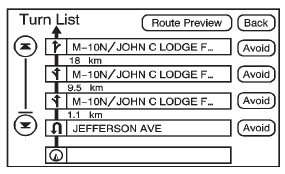
Press to view the list of turn maneuvers for the entire route and to avoid turns on the route.
 (Scroll Arrows): Press the arrows
to scroll through the list of maneuvers.
(Scroll Arrows): Press the arrows
to scroll through the list of maneuvers.
Avoid: Press this screen button, next to the adjacent street name, to avoid the maneuver.
The map screen displays. The route recalculates without this maneuver.
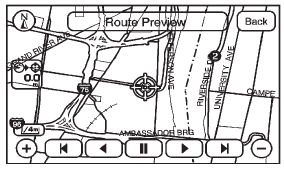
Route Preview: Press to preview the entire route in either direction.
 (Reverse Skip): Press to go back
to the start point or previous stopover.
(Reverse Skip): Press to go back
to the start point or previous stopover.
 (Reverse Scroll): Press to scroll
to the start point or previous stopover. The
(reverse skip) button changes to a fast
reverse screen button.
(Reverse Scroll): Press to scroll
to the start point or previous stopover. The
(reverse skip) button changes to a fast
reverse screen button.
 (Pause): Press to pause the route
preview, while in reverse or fast forward scroll.
(Pause): Press to pause the route
preview, while in reverse or fast forward scroll.
 (Fast Forward Scroll): Press to
scroll to the next stopover or to the final destination. The
(Fast Forward Scroll): Press to
scroll to the next stopover or to the final destination. The
 (fast forward skip) button changes
to a fast speed fast forward.
(fast forward skip) button changes
to a fast speed fast forward.
(Fast Forward Skip): Press to go
to the next stopover or to the final destination.
Detour
Press this screen button from the Route screen, then select to detour 2 km, 5 km, 10 km (1 mile, 3 miles, or 5 miles) around the current route. This can also be selected to detour the whole route if necessary. The detour option is only available while driving on a current planned route.
Voice Volume
Press this screen button from the Route screen to turn voice guidance on or off and to change the volume of voice prompts. See “Nav” under Configure Menu for more information.
Add Stopover
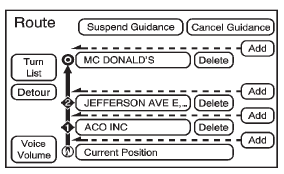
Press this screen button from the Route screen. This feature allows up to three stopovers to be added to the current route between the start point and final destination. Once a stopover has been added, the points can be edited or deleted.
To add a stopover:
1. Press DEST.
2. Press the Add Stopover screen button. This button only appears if a route has been calculated.
3. Using the desired method of entering a destination, enter the stopover. See “Destination” previously for more information.
4. Select the route preference for Fastest, Shortest, or Other. The system calculates and highlights the route.
5. Press Start Guidance. The route is now ready to be started.
6. To add the second and third stopovers, press DEST, then press the Add screen button, where the next waypoint should appear on the route.
7. Select the route preference for Fastest, Shortest, or Other. The system calculates and highlights the route.
8. Press Start Guidance. The route is now ready to be started.
To delete a stopover from the current route:
1. Press DEST.
2. Press Delete for the desired stopover to delete.
3. The system displays a pop-up confirmation message. Press Yes to delete the stopover; press No to cancel this operation.
4. Select the route preference for Fastest, Shortest, or Other. The system calculates and highlights the route.
5. Press Start Guidance. The route is now ready to be started.
Suspend Guidance
Press this screen button, from the Route screen, to put the current route on hold.
Resume Guidance
Press this screen button, from the Route screen, to resume guidance on the current route.
Cancel Guidance
Press this screen button, from the Route screen, to cancel the current route.
See also:
Care of Safety Belts
Keep belts clean and dry.
WARNING!
Do not bleach or dye safety belts.
It may severely weaken them.
In a crash, they might not be able
to provide adequate protection.
Clean safety belts only wit ...
Map Adjustments
The system lets you adjust the scale of view on the map. Also, as you drive,
the map scrolls automatically based on the direction of travel. ...
FCC Information
See Radio Frequency Statement for information
regarding Part 15 of the Federal
Communications Commission (FCC)
rules and Industry Canada
Standards RSS-GEN/210/220/310. ...